
How to Log into Hybrid Meeting on Teams
If you aren’t yet receiving a weekly email with news and updates, drop us a line at [email protected]!
These instructions will work for any meeting that is in the meetinghouse itself, any date – we use the same meeting code.
There are two possible ways to log into the meeting.
If you have the Microsoft Teams app installed, you can use that to sign in.
If you don’t, you can still sign in as a guest from your usual internet browser (Chrome, Edge, Firefox, Brave, Vivaldi, Internet Explorer, etc. Hint: it’s often easier NOT to use Teams.).
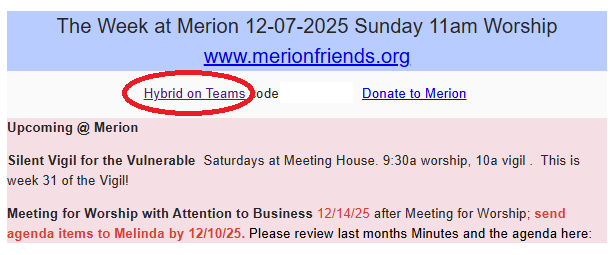
First, click on the link in any weekly email:
Now you have two choices:
Click “Open in Microsoft Teams” if you have the Teams app installed on your computer.
Click “Cancel” to just continue on your browser if you don’t have the app, or if you don’t want to use it.
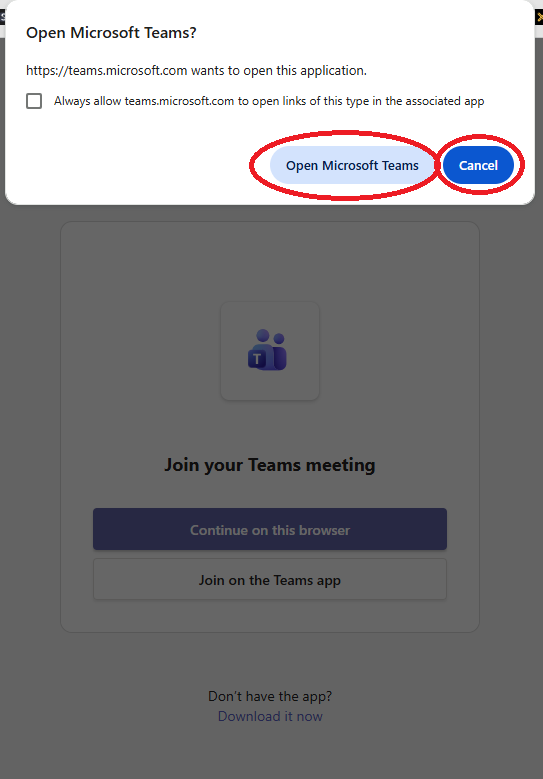
IF YOU AREN’T USING TEAMS:
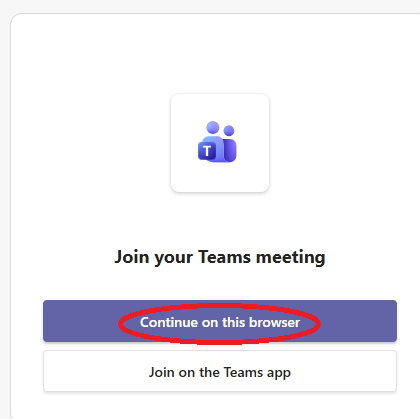
After you click “cancel,” click “Continue on this browser.”
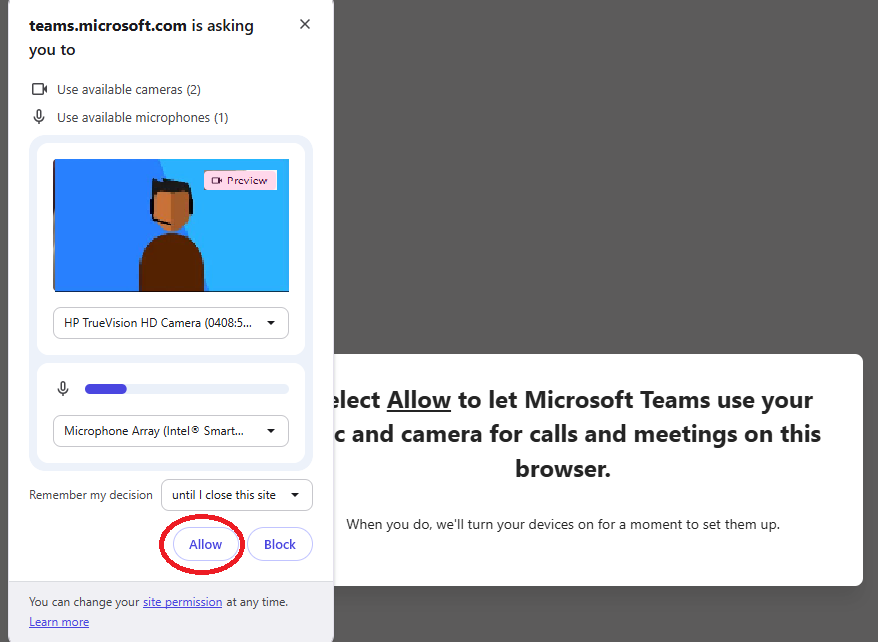
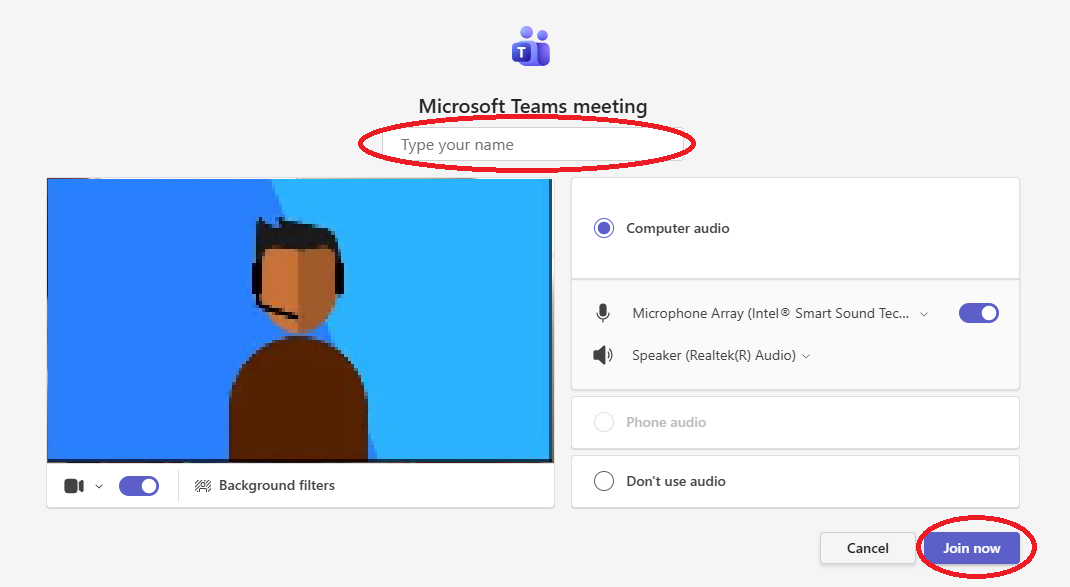
Click “Allow” to open your mic and camera to join the meeting. You will see whatever your own camera is showing in the thumbnail window.
Type your name in the top space as it will display in the meeting. Then click to “Join now.”
If no one in the meetinghouse has started the meeting yet, you may get a message to wait. You will be connected once they do.

IF YOU ARE USING TEAMS:
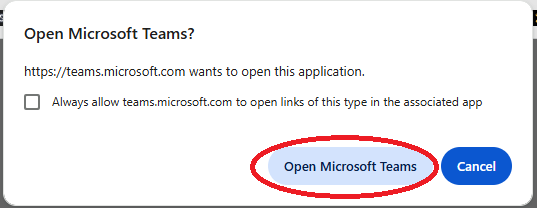
Click the button to “Open Microsoft Teams.”
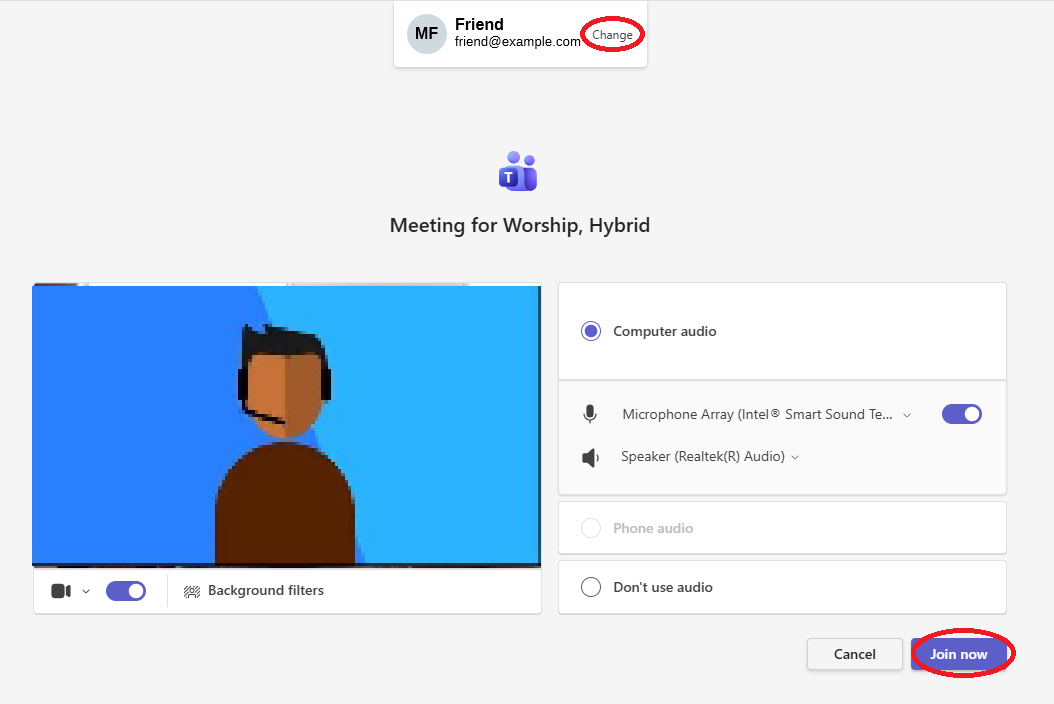
Now your Teams app will try to log you in with whatever email account it usually uses.
If you have more than one email account that you use for Teams (such as one for business and one for personal use), click “Change” to choose the one you prefer. Otherwise, just click “Join now” as above.
If you get stuck, try closing your browser and launching it again.
We look forward to you joining us for worship, either in-person or on-line, Sundays at 11:00 am.